Head director
In-house, at the agency
Hires the teams, holds the deadline, and has to decide whose version ships.
 Google Youth Advisor
Product & Graphics, senior at CalArts.
Born in NewJersey, raised in Seoul and Frankfurt.
Always curious about the world and ready to explore!
A collaborative timeline for K-pop production teams. Cuebit lets a head director, several choreography teams, and the artists mark dancer formations against the same track — and settle on one stage together, rather than three people solving it separately.
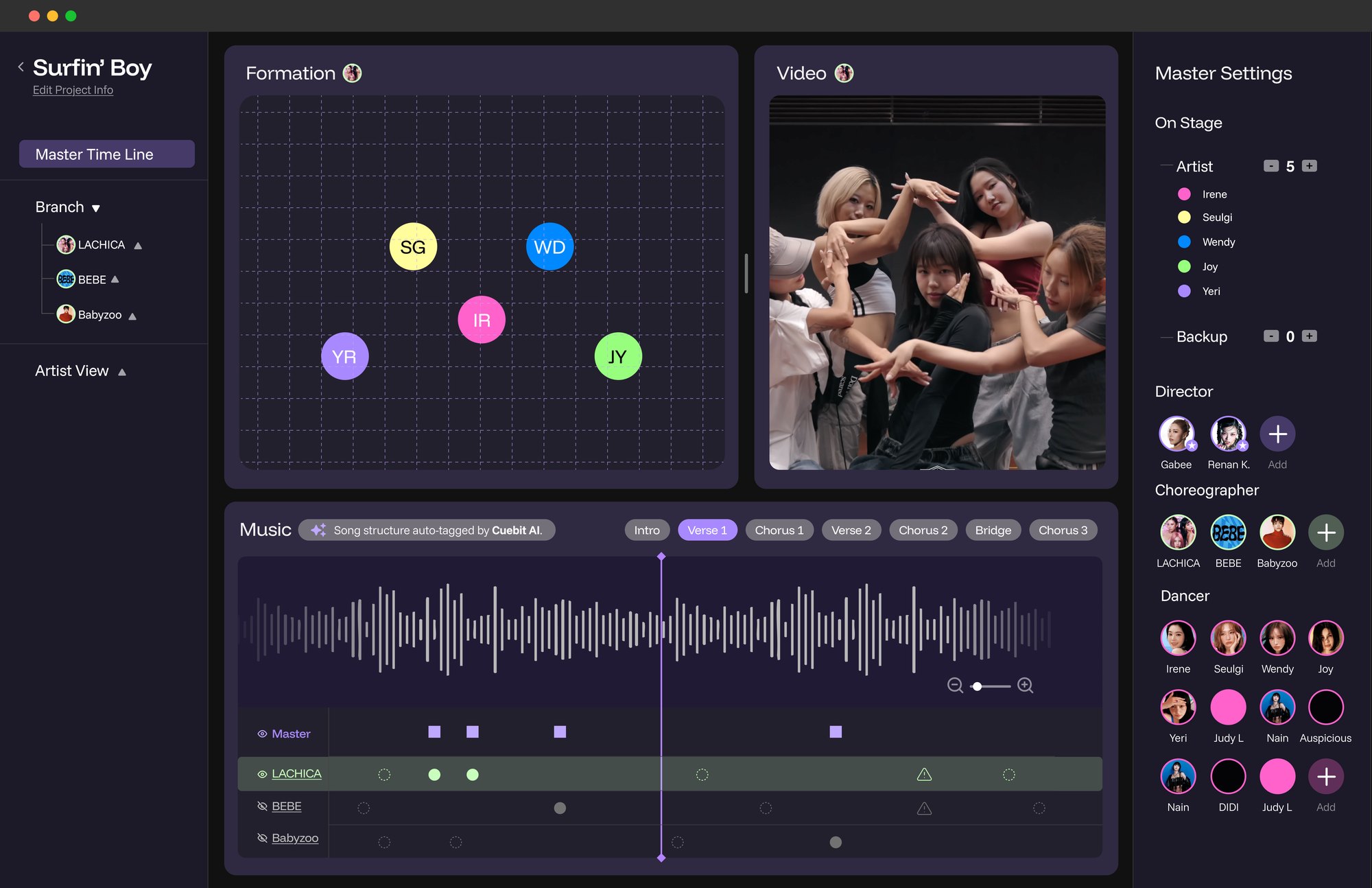
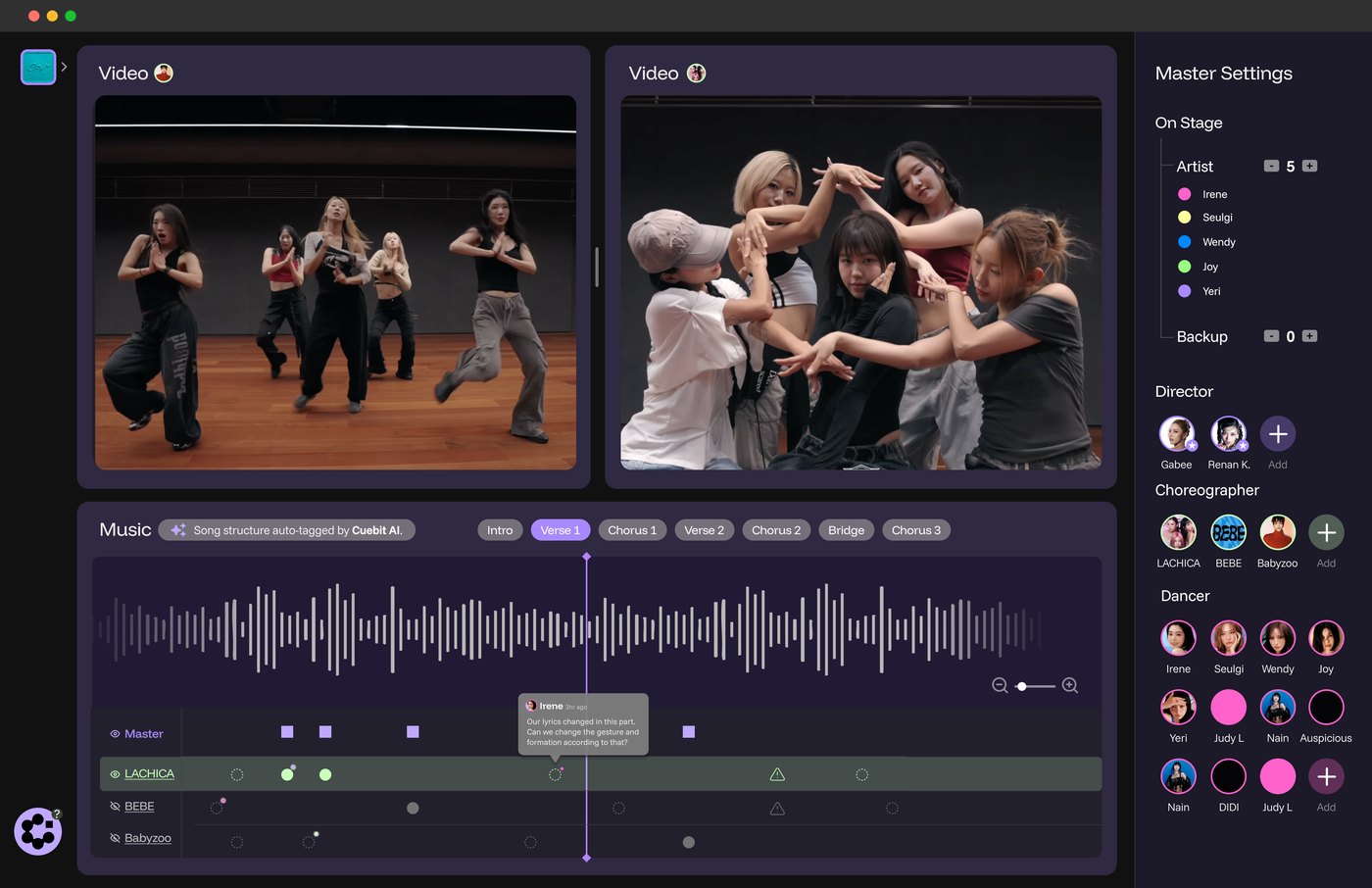
Master Timeline, every tab open. Branches on the left, formation and footage in the middle, cast and crew on the right — all reading from one playhead.
Choreographic, Choreoto, ArrangeUs, FORMI — every tool in this category is built for a single person placing dots on a stage. That's a reasonable assumption for a dance teacher. It's the wrong one for a comeback.
A K-pop release runs through a head director, several outside choreography teams, and the artists themselves, all working against a date that doesn't move. The tools don't hold that shape. There's no record of who changed what, no way to put two teams' drafts side by side and approve one, and no connection between the rehearsal footage and the formation it was supposed to follow — those live in different apps entirely, so checking one against the other means scrubbing two timelines by hand.
Hires the teams, holds the deadline, and has to decide whose version ships.
Each responsible for a section, each working without sight of the others.
Need to know where they stand and when it changed — and to flag what doesn't work.
I audited four formation-planning apps and found the same feature set in all of them: place points on a stage, sync to music, switch between 2D and 3D, animate the transition between two formations. The craft is genuinely good and the category is crowded.
Not one of them supports more than one person. No collaboration, no version history, no approval. That's where the audit stopped being about features and started being about the shape of the work.
If the editor is a commodity, the product has to be the workflow between people.
I tested that against one concrete scenario and designed the whole thing for it: an in-house director at an agency hires three choreography teams to direct a girl group's comeback. Every screen that follows is answering a question that scenario raises.
One source of truth, three levels of permission, and a review step borrowed from software.
Sees every branch, compares drafts, and is the only role that can write to the master timeline.
Full freedom inside their own branch, no ability to overwrite anyone else's work.
Can follow their own path through the whole song and leave notes, but never edits.
The branch model isn't an abstraction — it maps onto a sequence of real screens. This is the path a comeback actually takes through Cuebit, and every stop is a section below.
Open a group, see the latest takes, and start a new project.
Upload the track, confirm the AI section tags, cast the stage.
Each team drafts in its own branch, then hits Submit.
Compare drafts against the same bars, approve one, and it's recorded.
AI sits underneath steps 02 and 04 — tagging the song and flagging path conflicts — but never makes the call. That boundary gets its own section at the end.
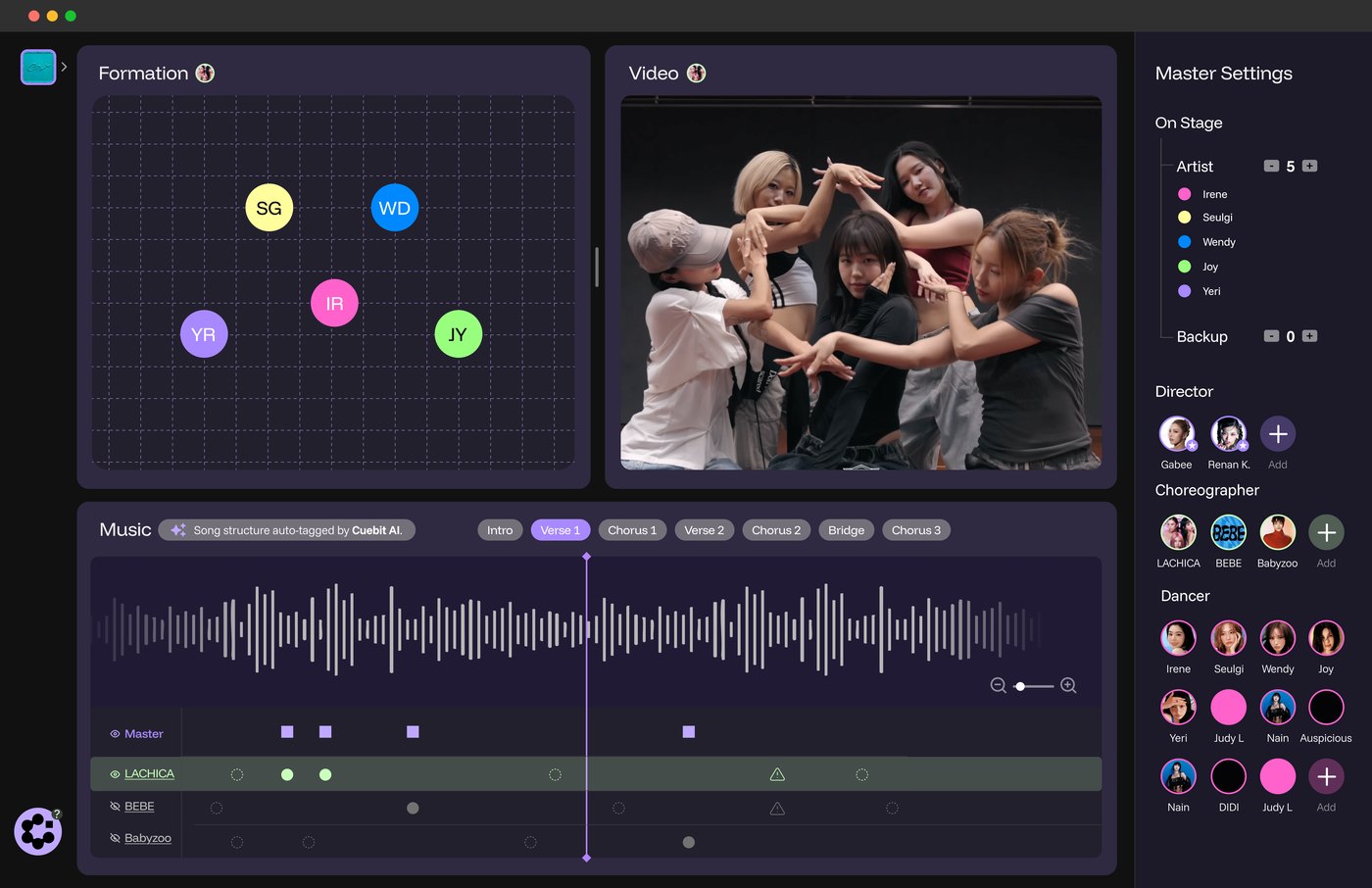
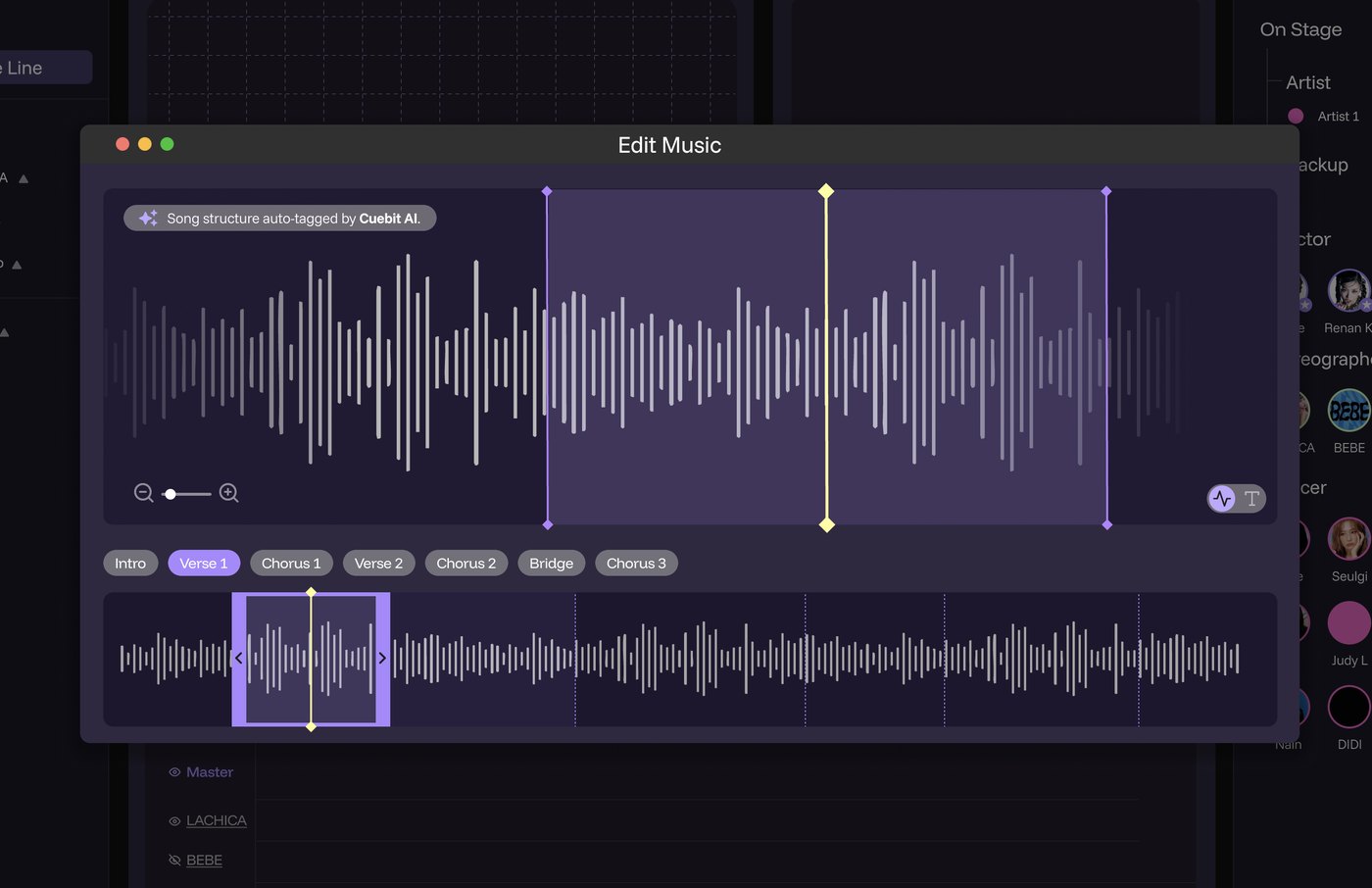
Song structure is auto-tagged into Intro, Verse, Chorus, and Bridge, then confirmed by the director. Formation, video, and cast panels sit side by side and all read from a single playhead, so scrubbing the waveform moves everything at once.
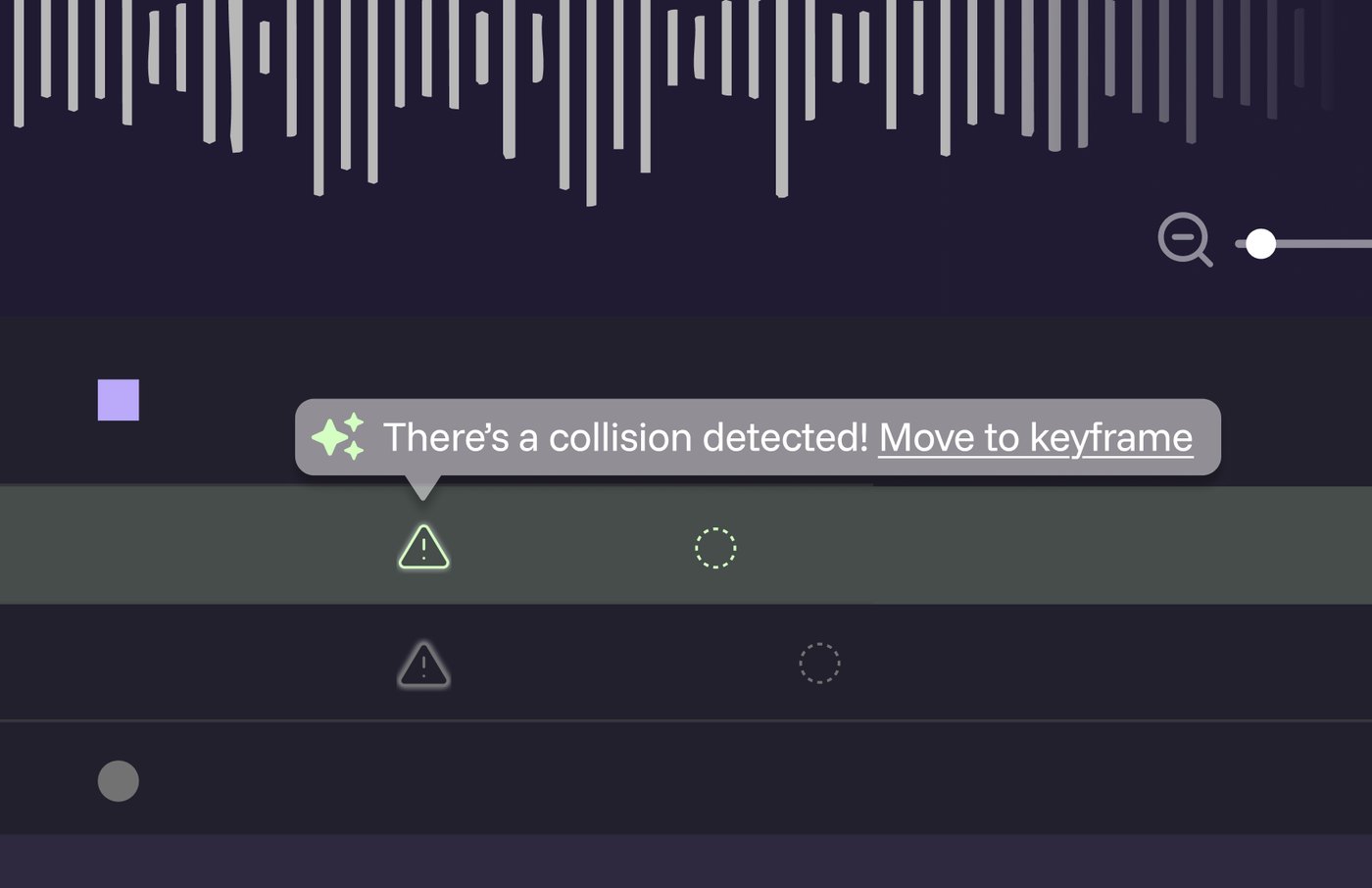
Under the waveform, Master sits above one track per team — LACHICA, BEBE, Babyzoo — so the director can see every draft against the same bars, toggle each one's visibility, and spot the conflict warnings before opening anything. Video comparison mode then runs two teams' footage side by side at the same timecode, which is the moment the whole premise pays off.
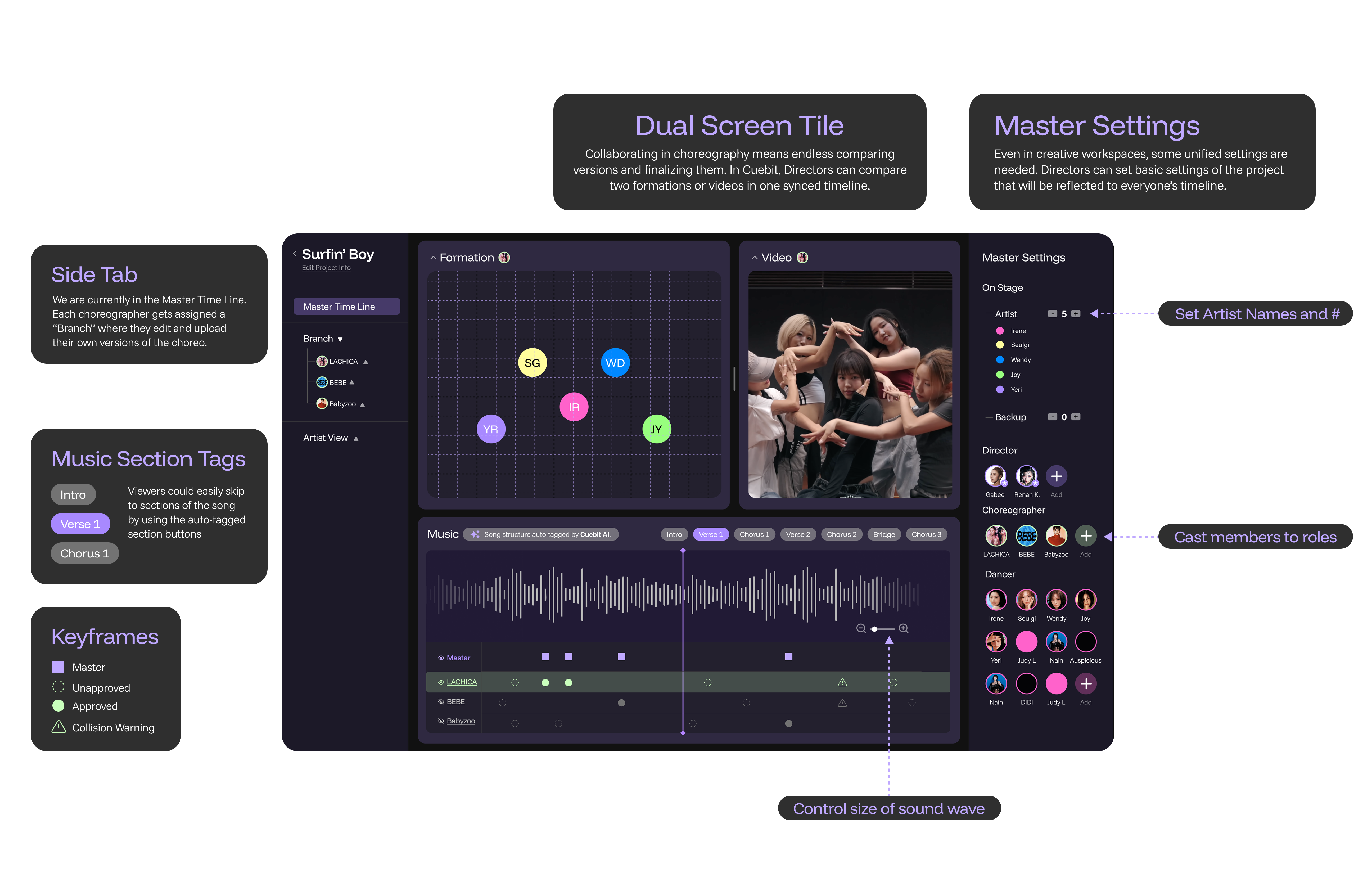
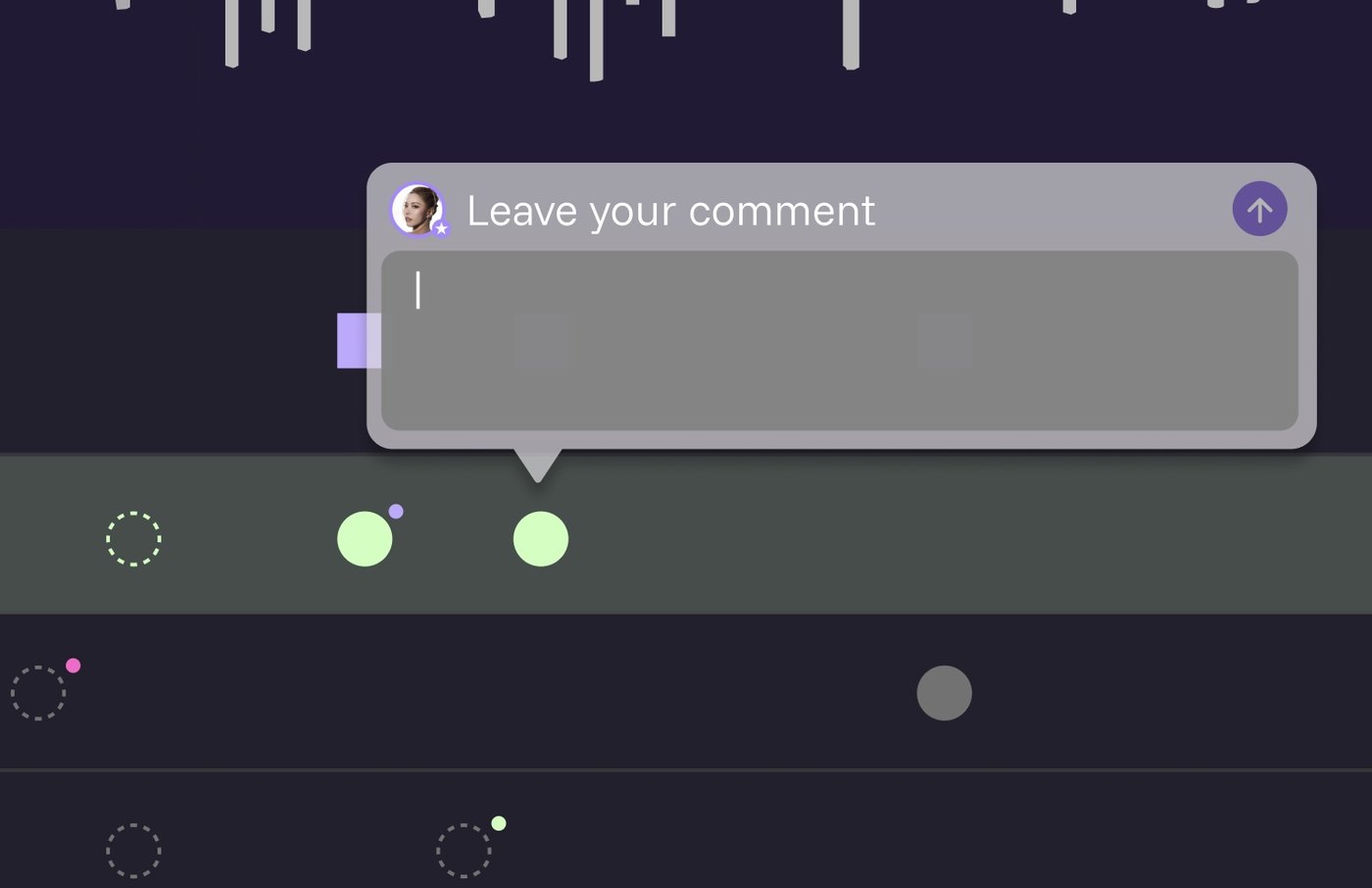
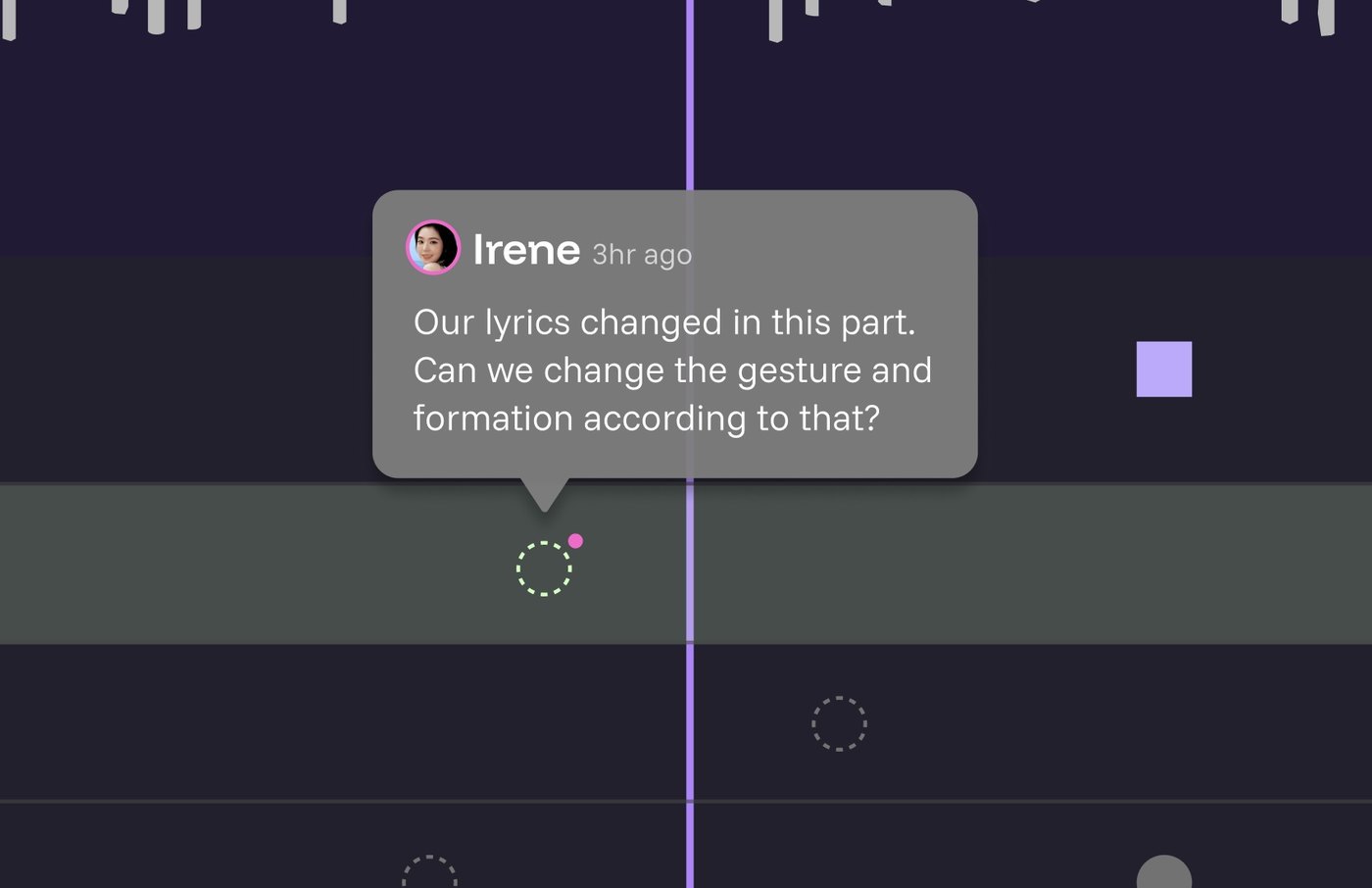
Feedback belongs on the exact beat it's about, not in a separate thread. Click a keyframe and a comment box opens pinned to that point in the song; anyone with access to the project can read it there, at the timecode it refers to.
A commented keyframe carries a small dot in the commenter's role colour, so a director scrubbing the timeline can see at a glance who flagged what — director, choreographer, or artist — before opening a single note.
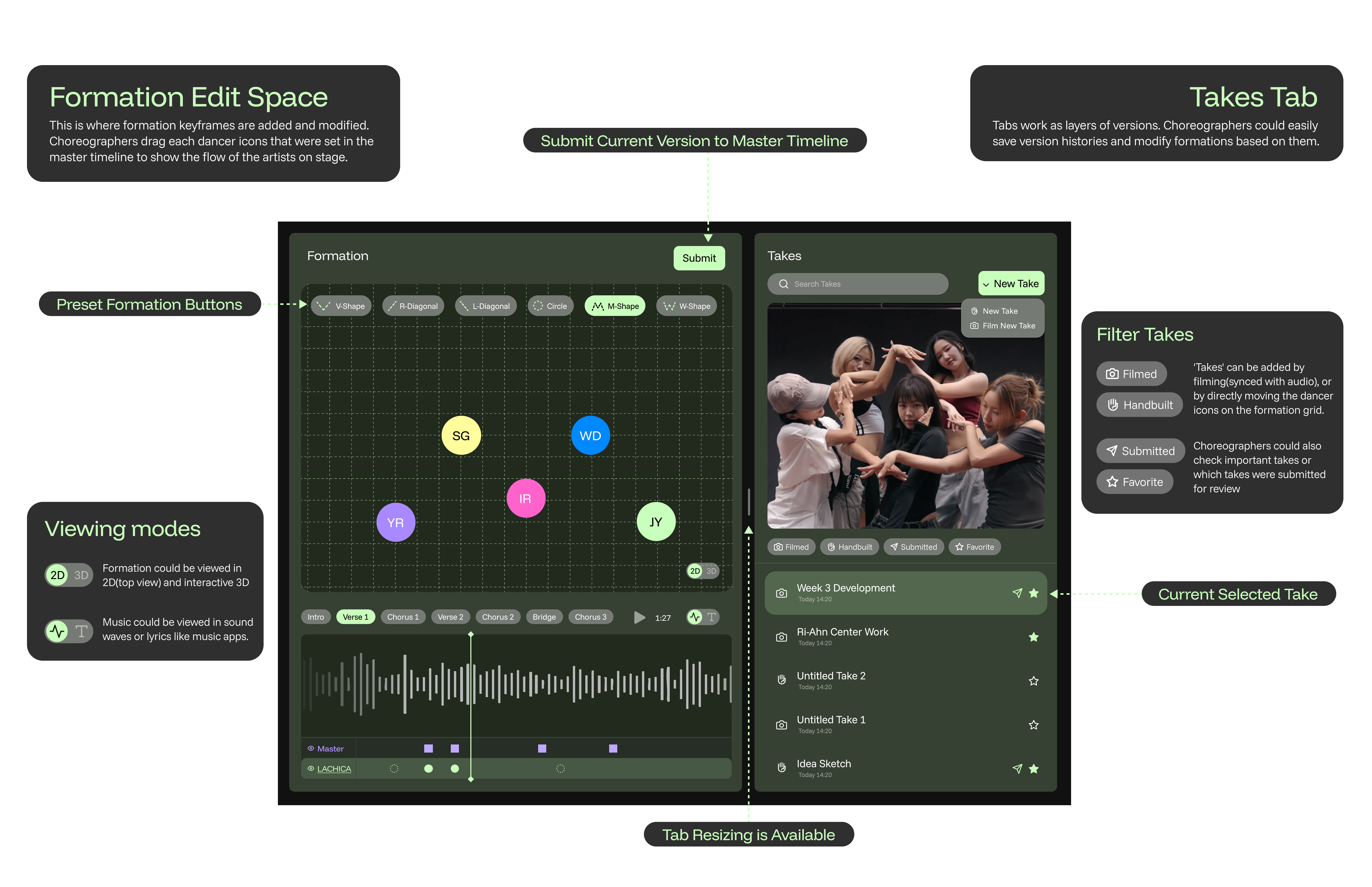
A choreographer never starts from a blank stage. A row of formation presets drops a starting shape onto the grid in one tap, and from there every mark is dragged directly into its real position. It turns the hardest part of a blank canvas — the first move — into a choice from a menu.
Lyrics mode swaps the waveform for synced lyrics, so tapping a line jumps the playhead the way a music app does. 3D mode takes the same formation data and lets you orbit the stage, since a flat grid can only say so much about where bodies actually stand.
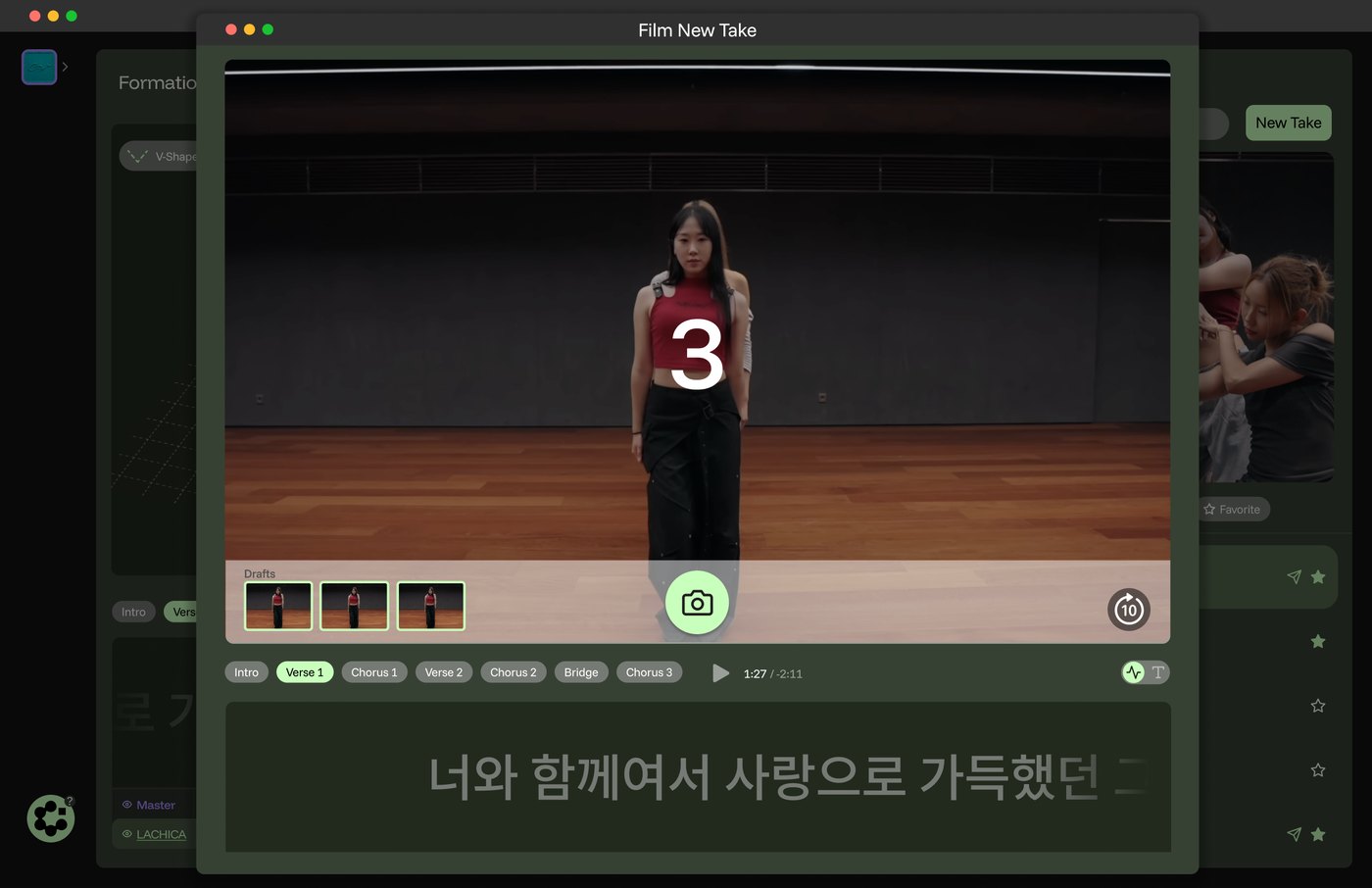
A take doesn't have to start with a marked formation, either. New Take opens a method chooser first — film it, start from a preset, or hand-mark on the grid — rather than assuming a camera. Filming mode is the video route: pick a section, get a 3-2-1 countdown, and record in-app against the registered track, with each attempt dropping into a running filmstrip. Every take is nameable and searchable rather than auto-numbered, and the Takes panel filters by Filmed, Handbuilt, or Submitted — so half a session's work never touching a camera is a first-class case, not an afterthought.
Every suggestion needs a human approval before it's applied. The boundary is the point: this is a tool for people whose creative authorship is the product, and it shows up at two specific moments — the start of a project and the review of a draft.
On a new project, AI proposes the Intro / Verse / Chorus structure from the uploaded track; the director confirms or corrects it before anyone marks a formation.
Extract poses from a video take and generate formation keyframes from them, so a filmed draft becomes editable marks.
Check a draft's paths against the master timeline and surface conflicts as warnings on the track, before the director opens anything.
AI proposes. People decide.
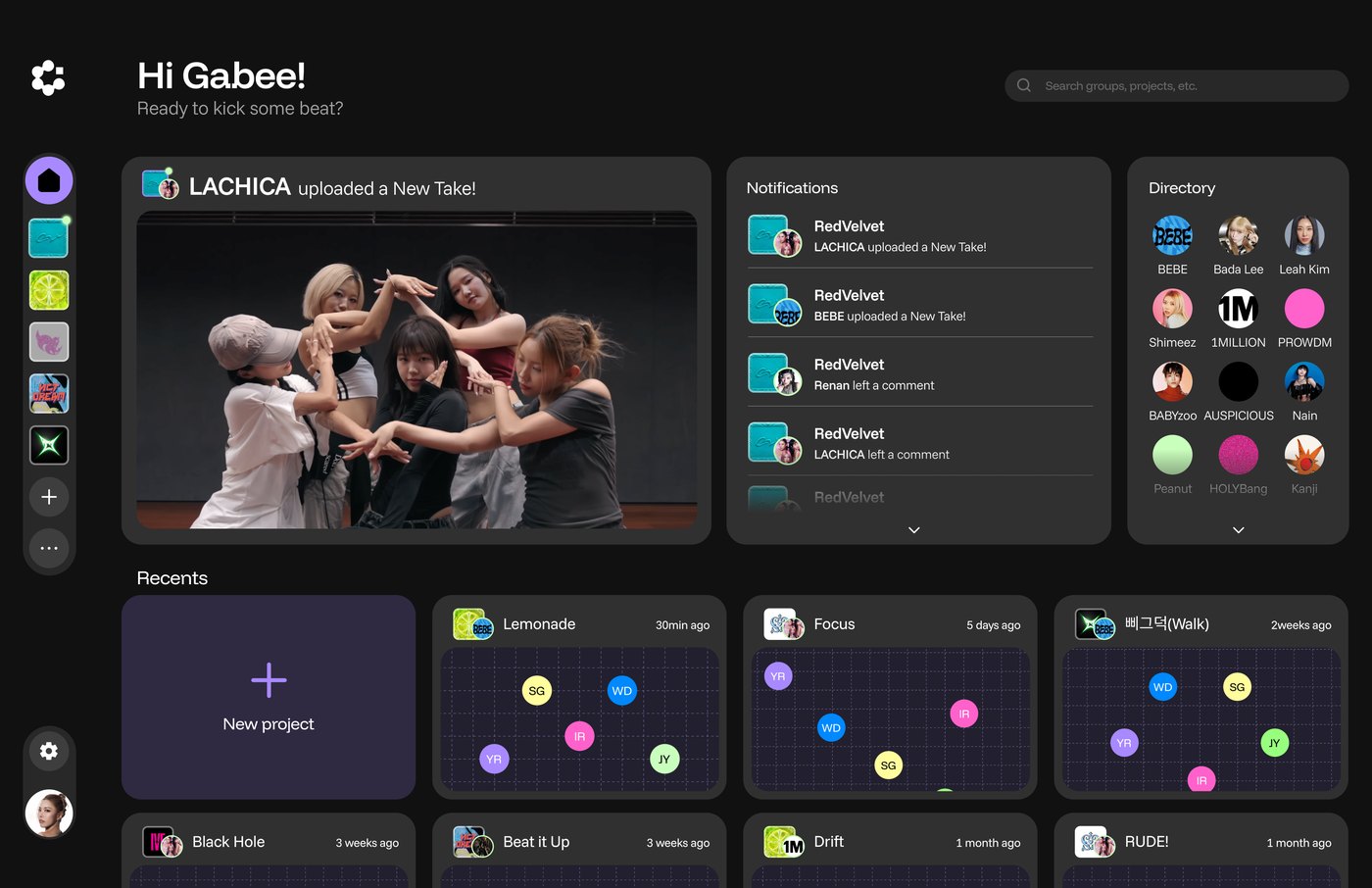
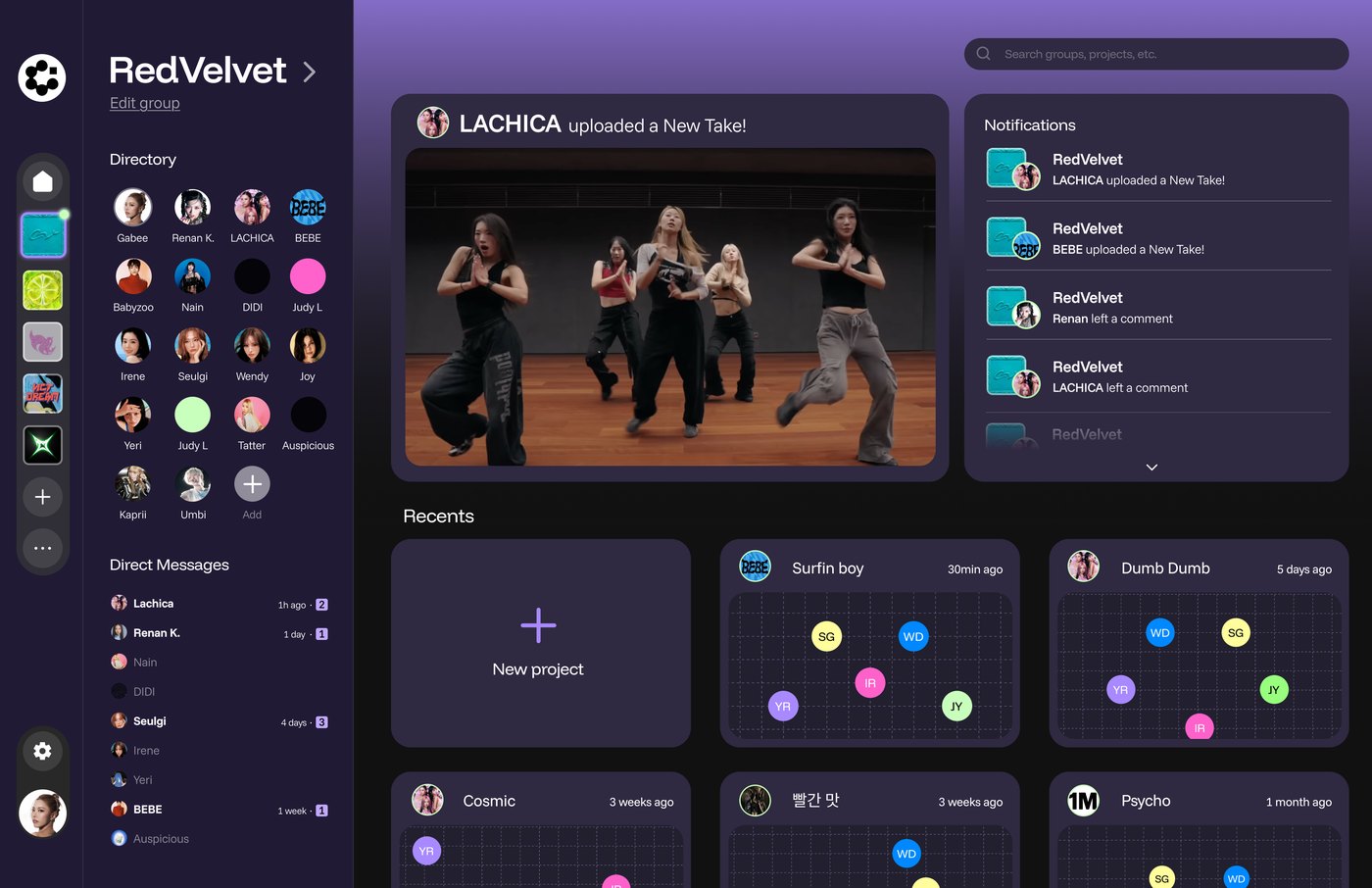
Home surfaces recent projects, activity ("LACHICA uploaded a New Take!"), and every group you belong to. The group dashboard scopes the same pattern down to one crew, with its own directory and project list.
Every project in Recents is previewed as its own formation rather than a file name or a cover image — so the thing you recognise a project by is the shape the dancers make in it.
Branches, approvals, and permissions are a familiar structure if you've used Figma or Git, and completely foreign if you haven't. A choreographer shouldn't need either reference to understand their own screen. Most of the design time went into translating that model into something legible at a glance — your own copy of the song, and a Submit button — rather than into the model itself.
Early on I considered having it recommend formations outright. I landed somewhere much stricter: tag the song at setup, read the footage, flag path collisions at review, and nothing else. The users here are people whose creative authorship is the product they sell. A tool that offers to do the authoring is solving a problem they don't have, and taking away the one they're paid for.
Four weeks, working alone, meant choosing two flows to take all the way: head director and choreographer. The artist experience exists in principle — permissions, a personal-path view — but it hasn't been drawn to the same level of detail, and I'd rather say that than imply the whole system is equally resolved.